Compatibility
StreamDeck for Streamlabs Desktop
The JJSD-02 talks to Streamlabs Desktop through the program's own remote control, with a token. No keyboard shortcut that stops working when the window loses focus.
See What It Controls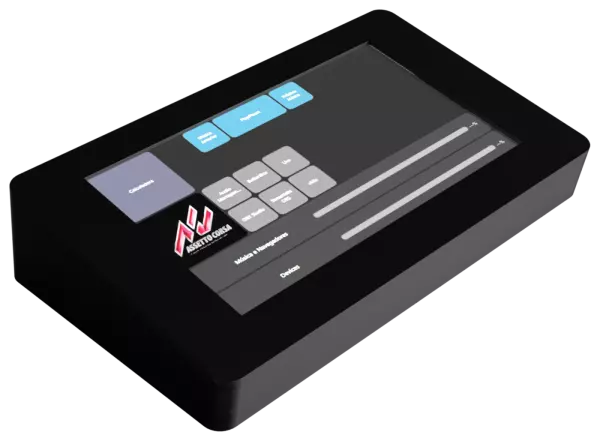
- Official invoice
- Warranty
- Made in Brazil, in-house
- WhatsApp support
What the JJSD-02 Controls in Streamlabs Desktop
Each item below is a module you drag onto the screen, at any size you want. All of them are part of free JJManager.
Go Live
Starts or stops the live stream with one tap.
Recording
Starts or stops recording, separate from the live button.
Replay Buffer
Turns on the replay buffer and saves the clip to disk, with the buffer already running.
Scenes
Activates a specific scene, chosen from the scenes available in your Streamlabs.
Volume
Controls the volume of Streamlabs audio sources on an on-screen slider.
A Live Production Panel for Streamlabs Desktop
The JJSD-02 grid has 10 by 6 cells and the panel splits into pages. A common way to organize it:
Live Page
Large buttons for scenes, start stream, start recording and save replay. Each button shows the current state, so you see right away if the stream dropped.
Audio Page
Volume sliders taking the full screen height: microphone, game, music and voice chat on separate controls, plus a mute for each source.
Shortcuts Page
Keyboard, mouse and text macros for everything outside the streaming program: canned messages, opening apps, sound effects.
One-Tap Page Switching
A fixed button on each page takes you to the others. JJManager does not limit the number of pages.
Good to Know
Streamlabs is a trademark of its respective owners. JohnJohn 3D is not affiliated with the project: the integration uses the program's own public interface.
The Panel Shows the State
Because it talks directly to the program, the screen knows whether you are live, recording or muted, and shows it on the button itself.
Works With Two Computers
The Streamlabs address is configurable: you can control the program running on another PC on the network, as in a setup with a dedicated streaming computer.
Prefer Mechanical Keys?
The StreamDeck JJSD-01 sends the F13 to F24 keys, which you bind to Streamlabs Desktop hotkeys. It does not show stream status, but it works with nothing to install.
No Subscription
No module on this page depends on JJManager PRO. The integration comes in the free version.
Frequently Asked Questions
How does the StreamDeck JJSD-02 connect to Streamlabs Desktop?
Where do I find the Streamlabs Desktop token?
Can I control Streamlabs Desktop running on another computer?
Do I need a subscription to use the Streamlabs Desktop integration?
Does JJManager need to stay open?
What if I prefer mechanical keys in Streamlabs Desktop?
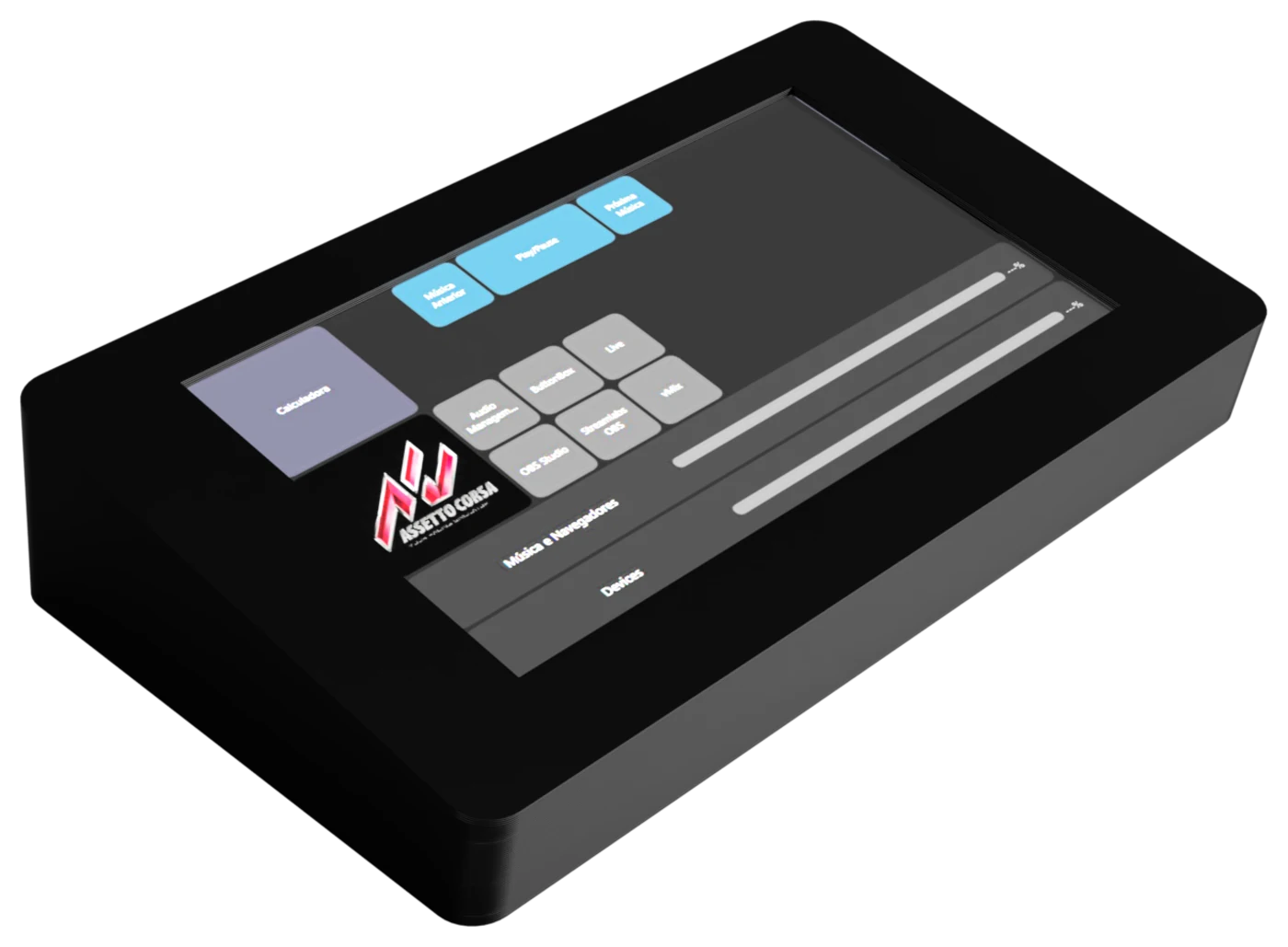
Meet the StreamDeck JJSD-02
7-inch touchscreen, a panel split into pages and 44 module types. The product page has an interactive simulation.